
Not seeing the pop-up to pair your tracker? You're not alone. This is one of the most common issues Android users run into when setting up a tracker, or any other accessory that uses Google's Fast Pair technology. Unlike iPhones, Android phones come from many different manufacturers, and each one uses slightly different menus and default settings. The setup pop-up only appears if the right settings are switched on, and these aren't always easy to find.
If your AusFindr tracker is activated and you've performed a reset, but your Android phone isn't showing the pop-up, work through the steps below in order. Most issues are fixed by Step 1 or Step 2.
Before you start
- Make sure your tracker is in pairing mode. It should work straight out of the packaging, but to rule out a configuration issue with the card, please perform the reset for a clean start. Once the reset is succesfull, continue the steps below.
- The Find Hub network needs Android 9 or later and check that your Android version is updated to it's latest version.
- Your phone needs Google Play services. Phones without it, such as some Huawei models or phones running custom operating systems like GrapheneOS or /e/ OS, usually can't show the pop-up.
- Trackers work with Find Hub connect through Google's pairing pop-up (Fast Pair). Wait for the pop-up rather than using "Pair new device" in your Bluetooth settings (you will not see your card in the phone's bluetooth setting).
- If you swiped away the pop-up a couple of times, Android may stop showing it for several minutes. Wait about five minutes, then put your tracker back into pairing mode by activating it.
Step 1: Turn on "Scan for nearby devices"
Android only shows the setup pop-up if this setting is on. It's the most common cause of the problem.
- Most Android phones: Settings > Google > Devices & sharing > Devices > turn on Scan for nearby devices. On some versions the path is Settings > Google > All services > Devices.
- Android 14 and newer: Settings > Connected devices > Connection preferences > Fast Pair. If you can't find it, type "nearby devices" into the Settings search bar.
- Samsung Galaxy: Settings > Connections > More connection settings > turn on Nearby device scanning.
- Google Pixel: also check Settings > Location > Location services > Bluetooth scanning.
Then put your tracker back into pairing mode.
Step 2: Check and Bluetooth and Location and restart your phone
Both must be on, or the pop-up won't appear.
- Swipe down and confirm Bluetooth is on.
- Go to Settings > Location and confirm Location is on.
- Make sure your phone is unlocked, awake and connected to the internet (Wi-Fi or mobile data).
- Turn Bluetooth off, wait 10 seconds, then turn it on again.
- Fully close the Find Hub app.
- Restart your phone, then try again.
Step 3: Update and refresh Google's apps
- Open the Google Play Store and update Find Hub and Google Play services.
- Still no luck? Go to Settings > Apps > Google Play services > Storage > Clear cache. Do the same for Find Hub.
- Restart your phone and try again.
Step 4: Check the Google account on your phone
- If your phone has more than one Google account, open Find Hub, tap your profile picture (top right) and switch accounts. Try pairing under each one.
- If many phones are signed into the same Google account, try pairing from a phone with only that account.
Step 5: Make sure the tracker isn't linked to another account
A tracker that was previously set up (for example, if you tested it earlier or connected to another account) may need to be released first.
- On the phone or account it was originally paired to, open Find Hub, select the tracker and tap Remove device.
- Factory reset the tracker as per the manual.
- Put it into pairing mode and try again.
If none of this works
- If possible, try a second Android phone. Some phones have Bluetooth quirks that stop the pop-up appearing, and testing a second phone helps confirm whether the issue is the phone or the tracker.
- Google offers support via various resources:
- Automatically connect your Bluetooth devices with Fast Pair
- Find & set up Bluetooth devices near your Android device (including Fast Pair fixes)
- Be ready to find a lost Android device (Find Hub setup)
- Fix issues with Find Hub
- Share & manage devices with Find Hub (including removing a tracker)
- How Google Play services interacts with nearby devices
- Find Hub Help Center (all articles)
- Find Hub overview and compatibility (android.com)
- Community discussion: Find Hub tracker usability on GrapheneOS
Still not working?
Check your tracker's manual and videos to confirm the reset was completed correctly, then contact us. Let us know which steps you've tried, your phone make and model and your Android version, and we'll help from there.
Contact us
We’re here to assist. You’ll usually receive a quick response, and always within one business day.
Before contacting us, please check the relevant section of the guide, as most issues can be resolved quickly by following the troubleshooting steps.
Contact form
Discover More AusFindr Products


Ultra-Slim 1.8mm

Rechargeable Battery

Apple & Android Compatible

No Subscription

Play Sound & Lost Mode

IP67 Water-Resistant
Ultra-Slim 1.8mm
Rechargeable Battery
Apple & Android Compatible
No Subscription
Play Sound & Lost Mode
IP67 Water-Resistant

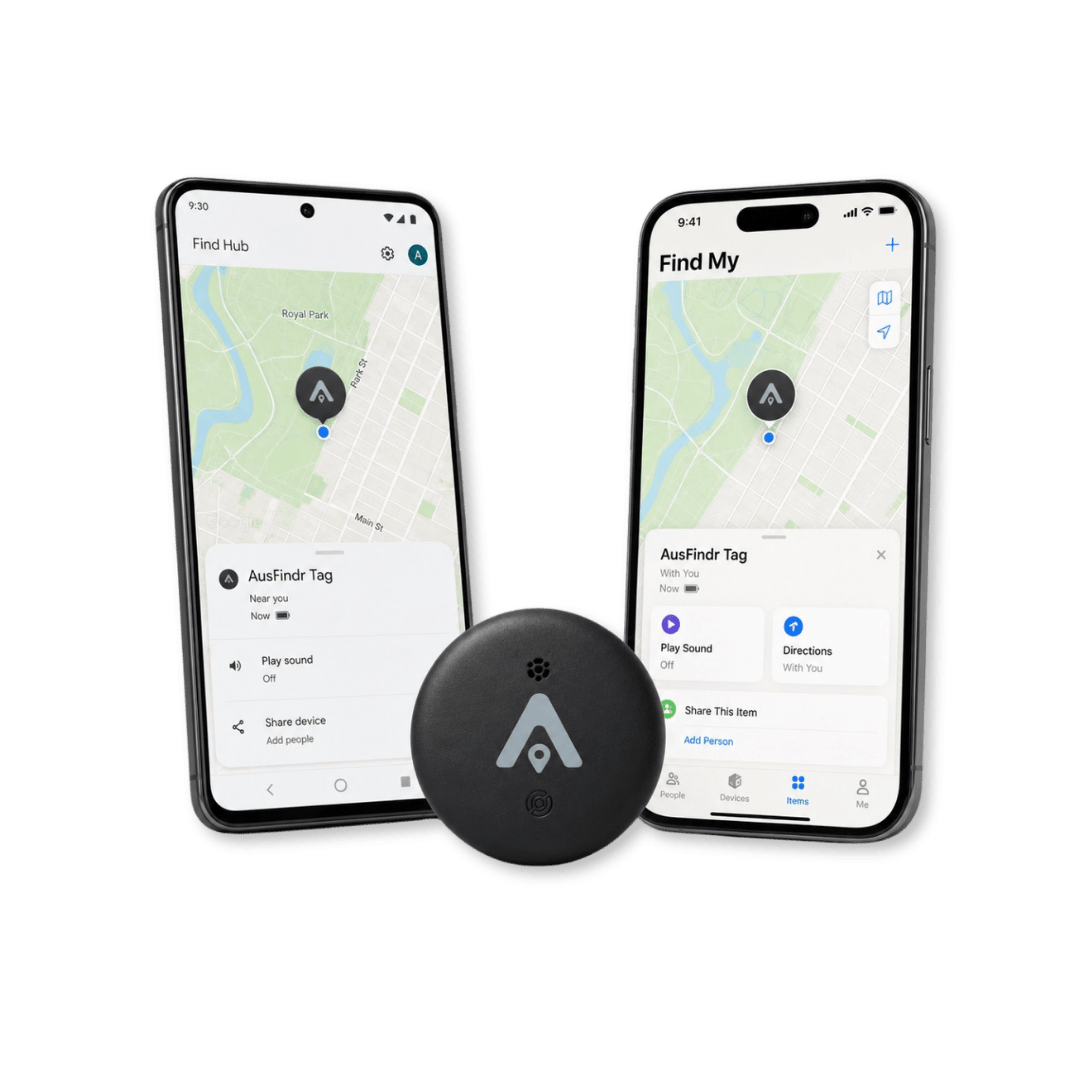
New Arrival

Fits AirTag Accessories
Apple & Android Compatible
Play Sound & Lost Mode

1-Year Battery Life

Replaceable CR2032 Battery
IP67 Water-Resistant
Fits AirTag Accessories
Apple & Android Compatible
Play Sound & Lost Mode
1-Year Battery Life
Replaceable CR2032 Battery
IP67 Water-Resistant
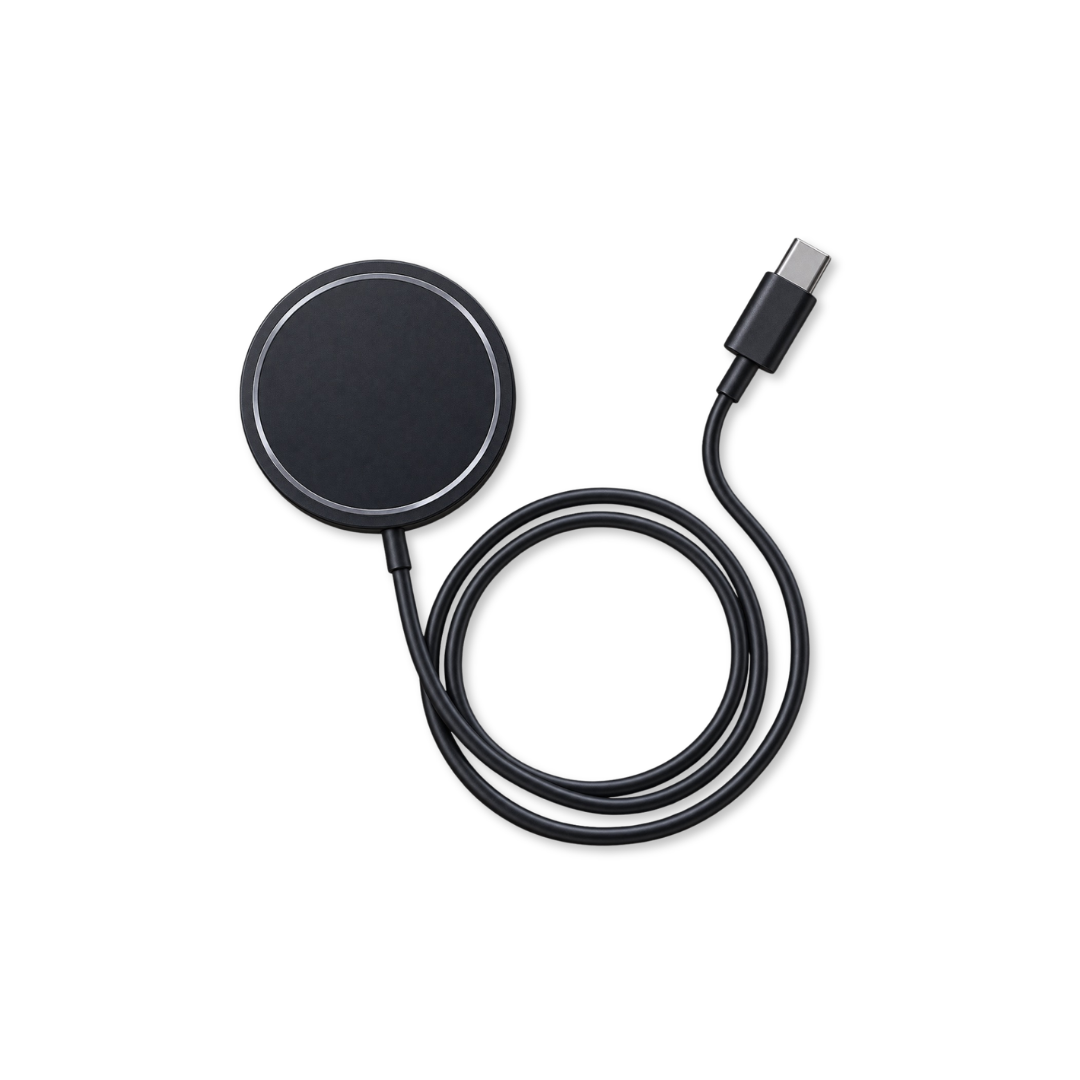
Charge Your AusFindr Card

Wireless Charging Companion

USB Powered
Charge Your AusFindr Card
Wireless Charging Companion
USB Powered
Charge Your AusFindr Card
Wireless Charging Companion
USB Powered
Charge Your AusFindr Card
Wireless Charging Companion
USB Powered
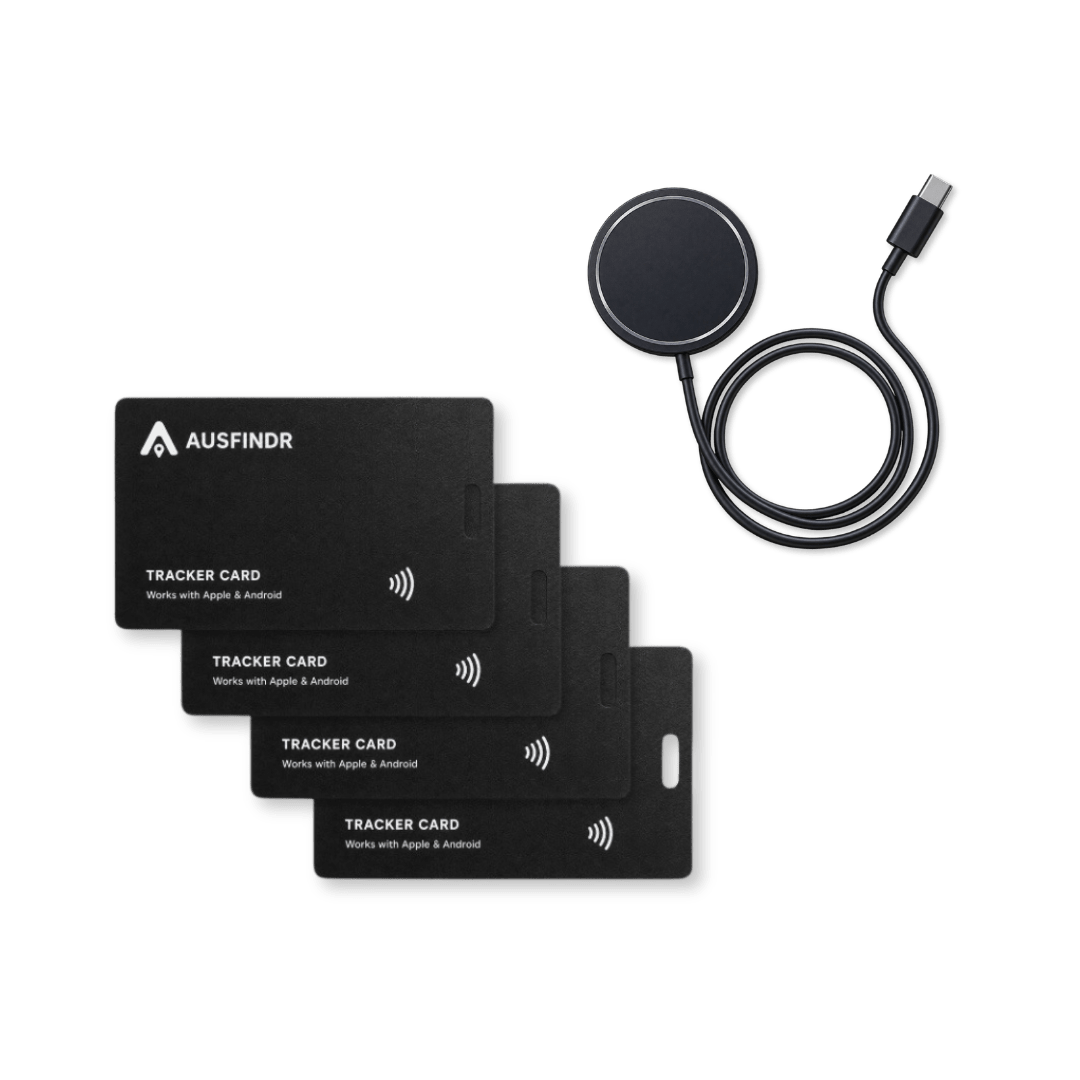


Best Value Bundle
Charge Your AusFindr Card

Global Tracking Network
No Subscription
Ultra-Slim 1.8mm
Best Value Bundle
Charge Your AusFindr Card
Global Tracking Network
No Subscription
Ultra-Slim 1.8mm


